
Discover.
Your feeds, short AI briefs, clear sources.
Discover is a news tab. It shows headlines from RSS / Atom feeds that you choose, sorted into categories, and writes a short AI brief with numbered sources for any story. It ships switched off, every default feed ships off, and you should read each publisher's terms before you switch a feed on.
01What users see
An RSS or Atom feed is a public list of a website's latest headlines that apps may read. Discover reads the feeds you enable and shows them as story cards.
- Category chips at the top: "For you" first (if on), then your categories (six ship: Top Stories, Business, Tech, Science, Sport, Culture).
- Story cards: the feed's picture, title, short summary, age and source, with listen, share and more.
- Article view: the AI brief (up to about 180 words) with numbered sources, Listen (read aloud), a bookmark, Read the original (opens the publisher's page) and Ask follow-up (opens a chat that starts from the brief and its sources).
- For you mixes categories by what the user opens. This is decided on the device; nothing about reading habits is stored on your server.
- Bookmarks are saved on the device and listed in Library → Saved.
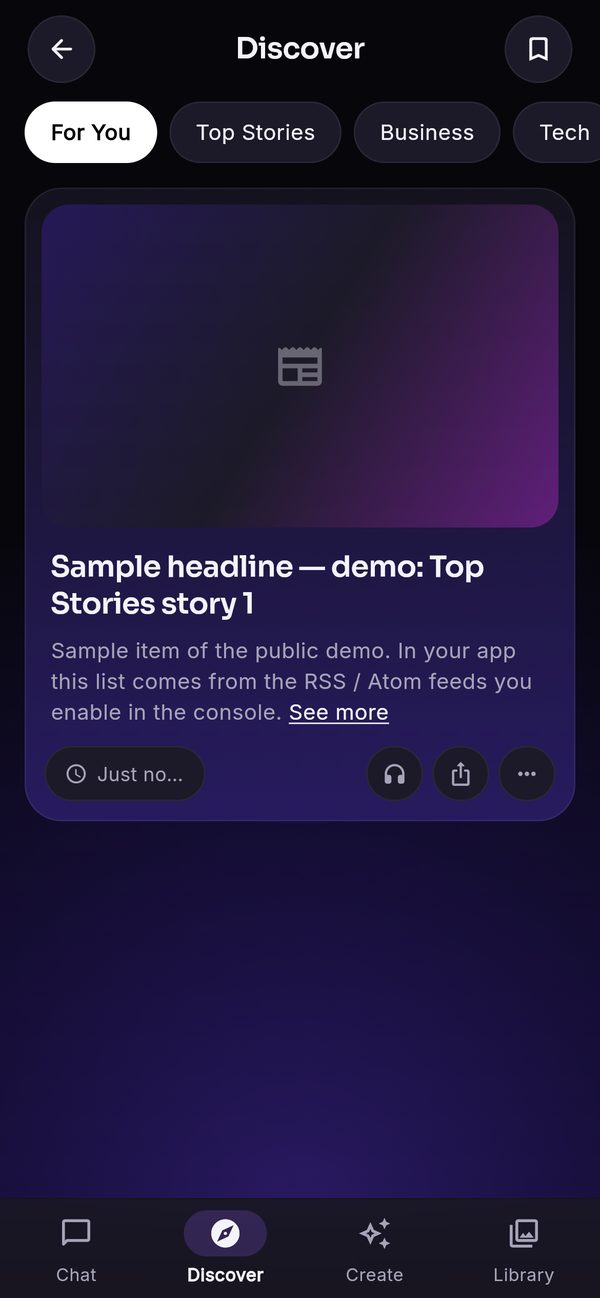
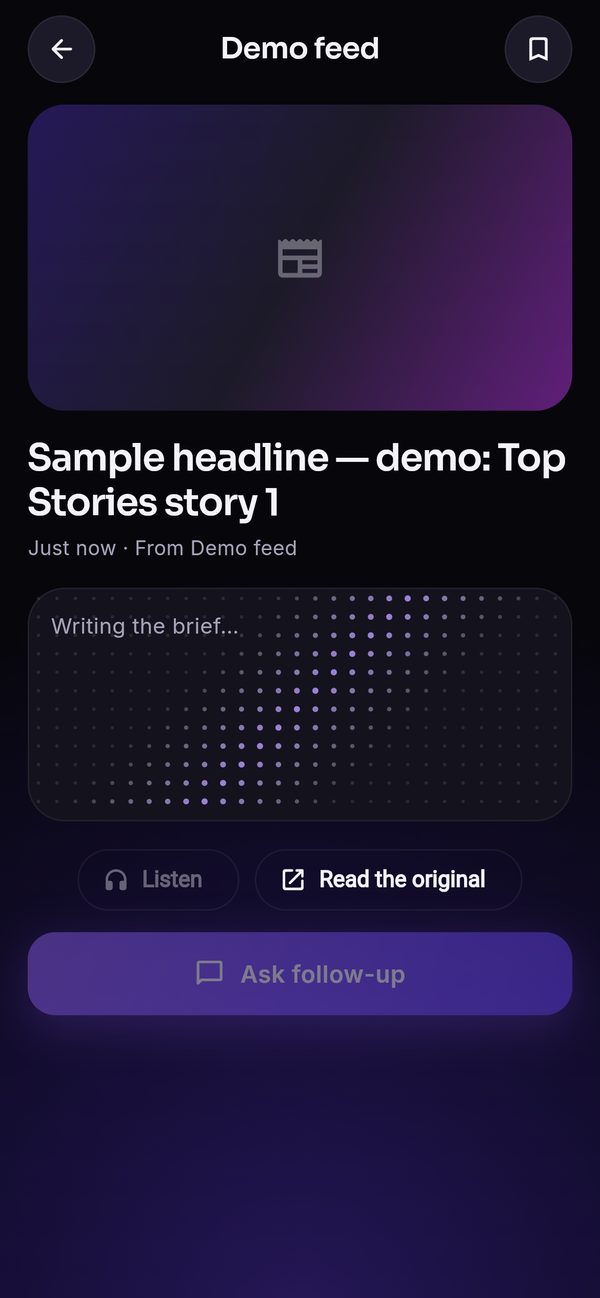
The demo shows items labelled "Sample headline — demo" from a "Demo feed" and fetches no real feed. In your app the cards come from your feeds.
02Switch it on, step by step
- Chat modelBriefs are written by a chat model, so at least one chat model must be enabled with a key (Installation, step 4).
- Review the feedsConsole → Discover feeds page → Feed sources. Twelve public feeds ship, two per category, all switched off. For each one you want, read the publisher's terms first (below).
- Test a feedClick Test feed: the server fetches the feed and shows its first three titles. If it fails, the address is wrong or the site refuses the request.
- Enable feedsTick Enabled on the feeds you may use, or Add your own (name, feed URL, category). At most 50 feeds and 12 categories. Save.
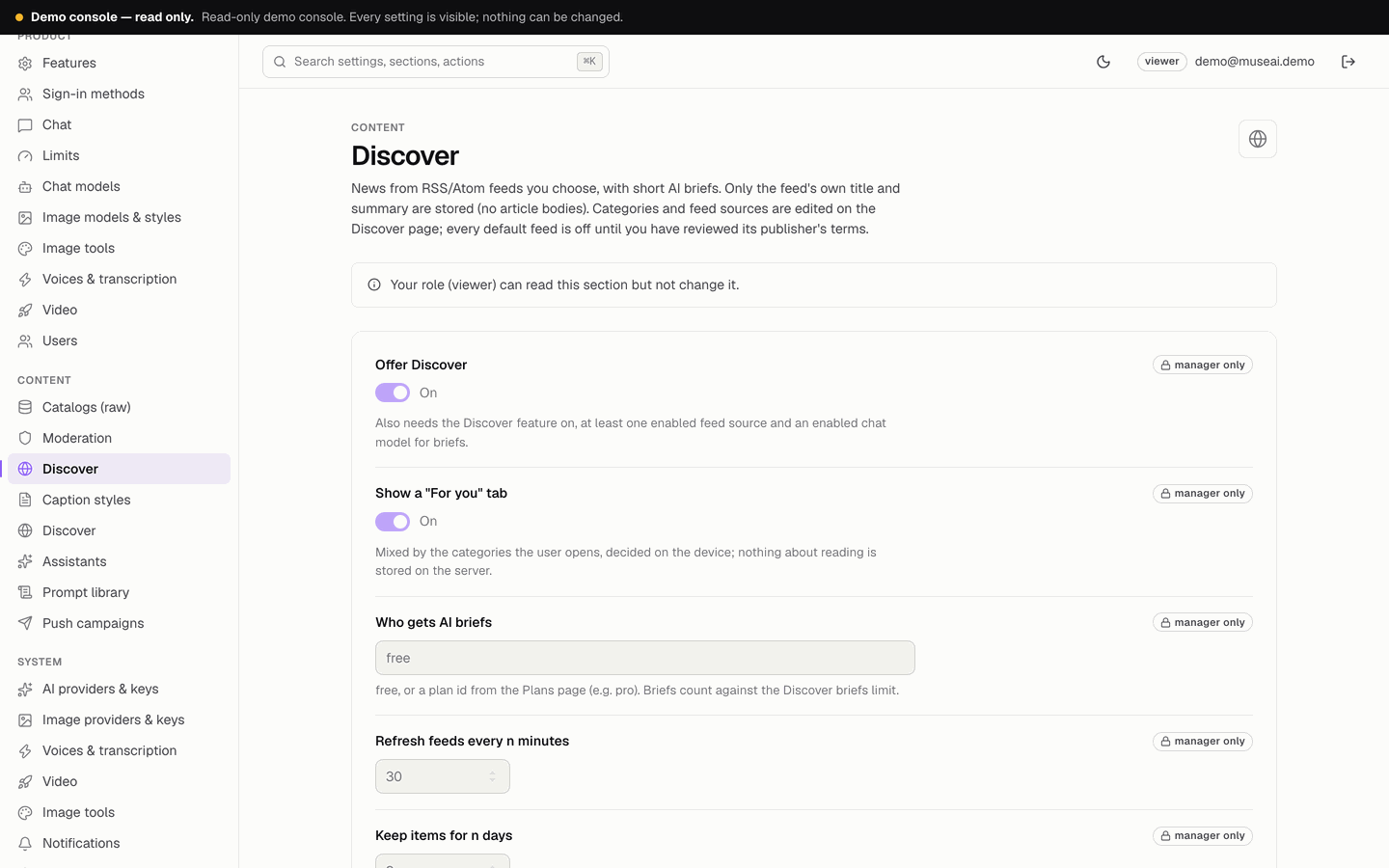
- Switch Discover onConsole → Discover settings → Offer Discover on, and Console → Features → Discover on. Save.
- Wait for the first fetchThe scheduled job
refreshDiscoverruns every 10 minutes and fetches each feed at most every Refresh feeds every n minutes (default 30). The tab appears in the app once there are items. - CheckConsole → Status → "Discover feeds healthy", and
<API_BASE_URL>/v1/health→"discover":"ok".
03Settings
| Setting | Default | What it does |
|---|---|---|
| Offer Discover | off | Master switch. Also needs the Discover feature, at least one enabled feed and an enabled chat model. |
| Show a "For you" tab | on | The mixed tab, decided on the device. |
| Who gets AI briefs | free | free or a plan id (for example pro): who may open a brief. Briefs also count against the Discover briefs allowance (free 5 a day; the example plan 100). |
| Refresh feeds every n minutes | 30 (10–1440) | How often each feed is fetched. |
| Keep items for n days | 3 (1–14) | Older items are removed by the daily cleanup. |
| Categories (Discover feeds page) | 6 | Up to 12, names up to 24 characters. |
| Feed sources (Discover feeds page) | 12, all off | Up to 50: name, URL, category, enabled. Stored only on the server. |
04Publisher terms: read them before you switch a feed on
A public feed is not a licence. Each publisher's terms decide whether you may show its headlines, summaries and pictures in your app, and whether you may do so in a commercial app with ads or paid plans. Some publishers allow their feeds only for personal, non-commercial use; some require attribution or a link back; some forbid reuse altogether. That is why every default feed ships switched off.
- Find the termsOn the publisher's site, look for "RSS terms", "Terms of use" or "Syndication". Check whether your use (a commercial mobile app, with ads or subscriptions) is allowed.
- Enable only what you may useIf the terms are unclear, ask the publisher or leave the feed off. You can add feeds you have a licence for, including your own.
- Keep the linkMuse AI always shows the source name and offers "Read the original", which opens the publisher's page.
What Muse AI stores from a feed: the headline, the link, a plain-text summary of at most 300 characters from the feed itself, the feed's own picture link and the date. It never downloads or copies article bodies. The AI brief is written from the headline and feed summary of the story and up to four related items, is labelled "AI-generated", and lists those items as numbered sources.
05Costs
Fetching a feed costs nothing beyond Firebase usage. Each brief is a call to your own chat provider, billed to your account; briefs are cached per story and language until the story expires, but every brief served counts against the user's allowance. See Costs.
06When Discover stays empty
- No feed enabled, or Discover / the feature switch is off:
/v1/healthshows"discover":"off"or"no_key". - No chat model with a key: the module is reported off while briefs cannot be written.
- The job has not run yet: wait up to 10 minutes after switching on. Health shows
"stale"when the last run is too old. - Every feed fails: health shows
"failing". Use Test feed on the Discover feeds page; Status lists each feed's error. Common causes: a wrong URL, a site that blocks automated requests, a feed larger than 2 MB, or an address on a private network (refused for security).
More: Troubleshooting → Discover.