
Video Studio.
Generate clips, edit on the phone, add captions.
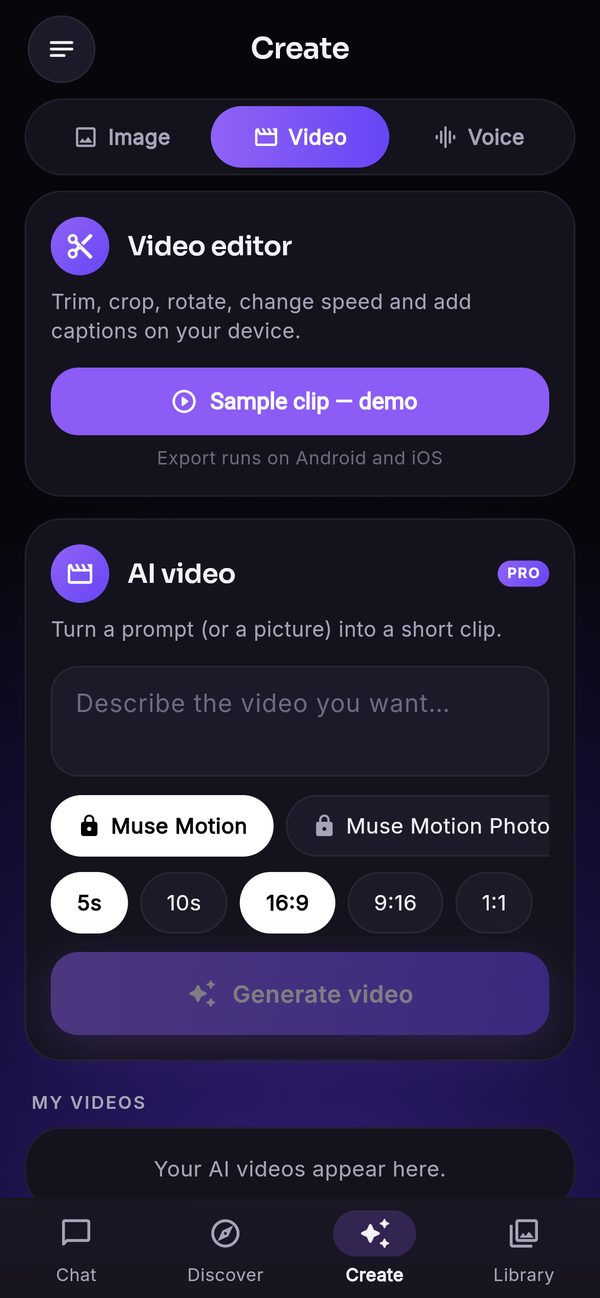
Create → Video has three parts: AI video generation through fal.ai or Replicate, an on-device video editor, and auto captions. The editor runs on the phone and needs no provider. AI video and captions use providers on your own account and ship switched off. Exporting a video runs only in the Android and iOS apps, never in a browser.
01The three parts
| Part | Runs on | Needs | Switch (Console → Features) | Default |
|---|---|---|---|---|
| Video editor | The phone (Android: AndroidX Media3; iOS: AVFoundation; no FFmpeg) | Nothing | Video editor (on device, no provider) | on |
| Auto captions | Audio is extracted on the phone, transcribed by your provider | OpenAI or Deepgram transcription key | Auto captions | off |
| AI video | fal.ai or Replicate, as a job; the finished file is copied to your Storage | fal.ai or Replicate key and an enabled video model | AI video generation | off |
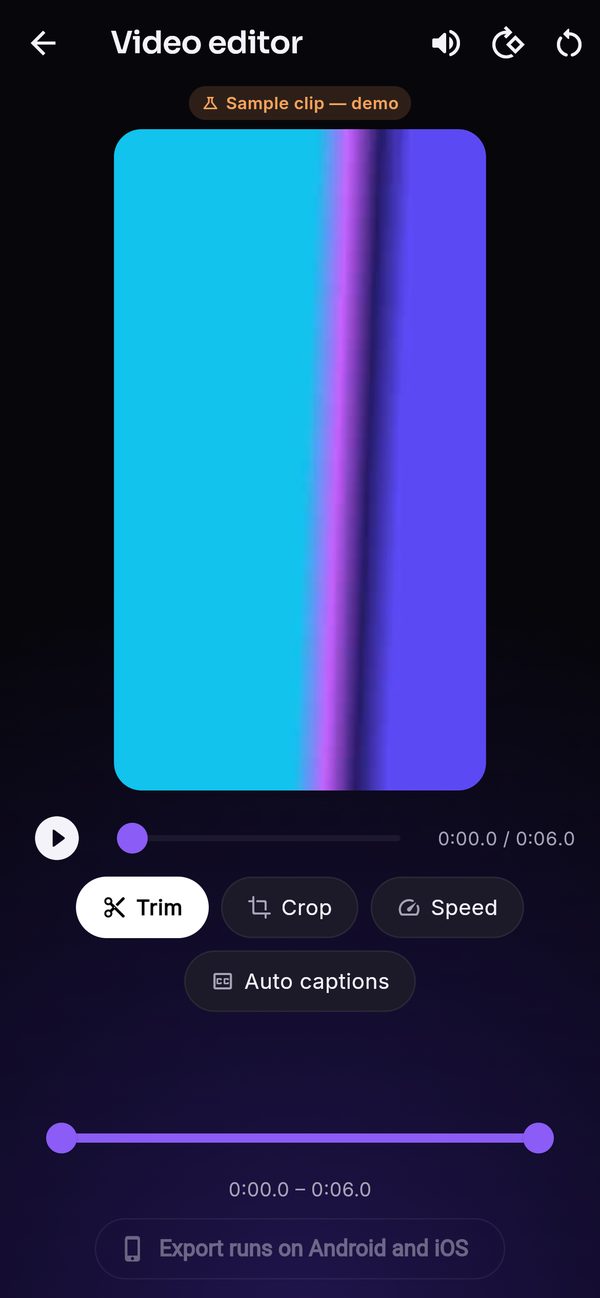
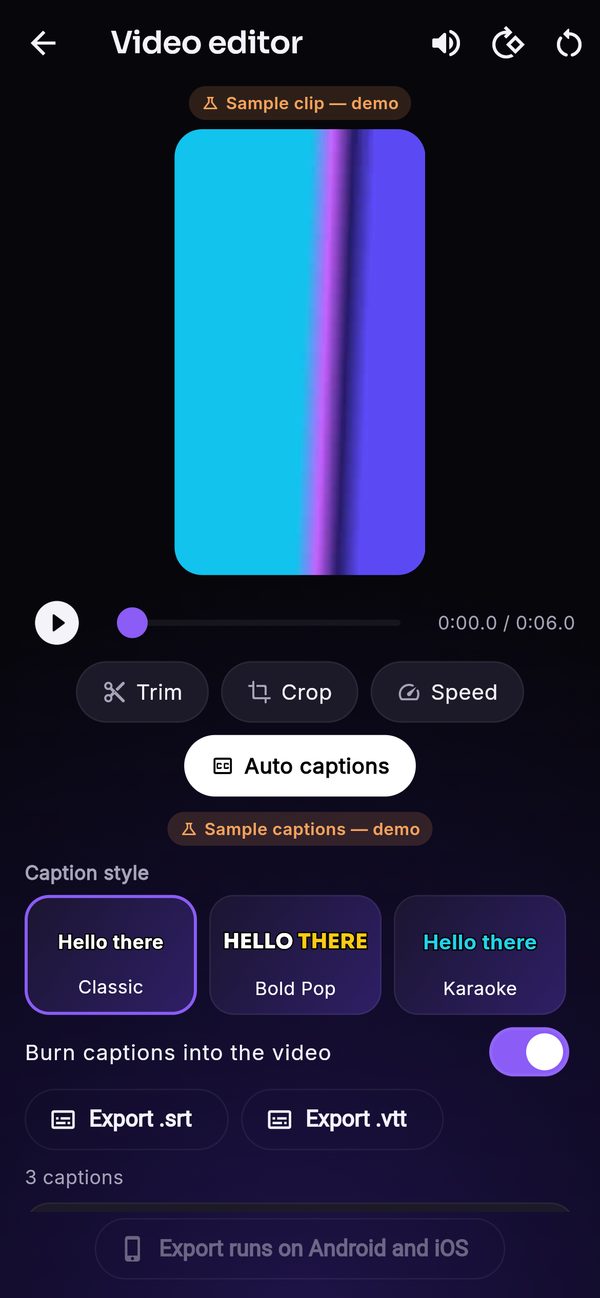
Trimming, cropping and burning in captions are done by the phone's own media engine when the user taps Export. The web build cannot export: in the web demo the editor opens a bundled "Sample clip — demo" with "Sample captions — demo", and the export button is disabled and labelled "Export runs on Android and iOS". Test exports on a real device or emulator.
02The video editor
- Import a video from the gallery or the camera.
- Trim with a thumbnail strip; Crop to original, 9:16, 1:1, 16:9 or 4:5 and pan the frame; Rotate; Speed from 0.5× to 2×; Mute.
- Export an H.264 MP4 to the phone's gallery and to Library → Videos.
Nothing is uploaded for editing. The editor is on by default because it costs you nothing to run.
03Auto captions
- Transcription keySet up transcription with OpenAI or Deepgram (Voice → transcription). Gemini returns no word timings, so captions stay off with Gemini.
- Switch onConsole → Features → Auto captions on. Save.
- In the appThe user taps Auto captions in the editor. The phone extracts the audio, your backend sends it to the provider with word timings, and the captions appear in the caption editor.
- EditChange the text of a line, split it, merge it with the next, nudge its timing by ±0.1 s, or delete it.
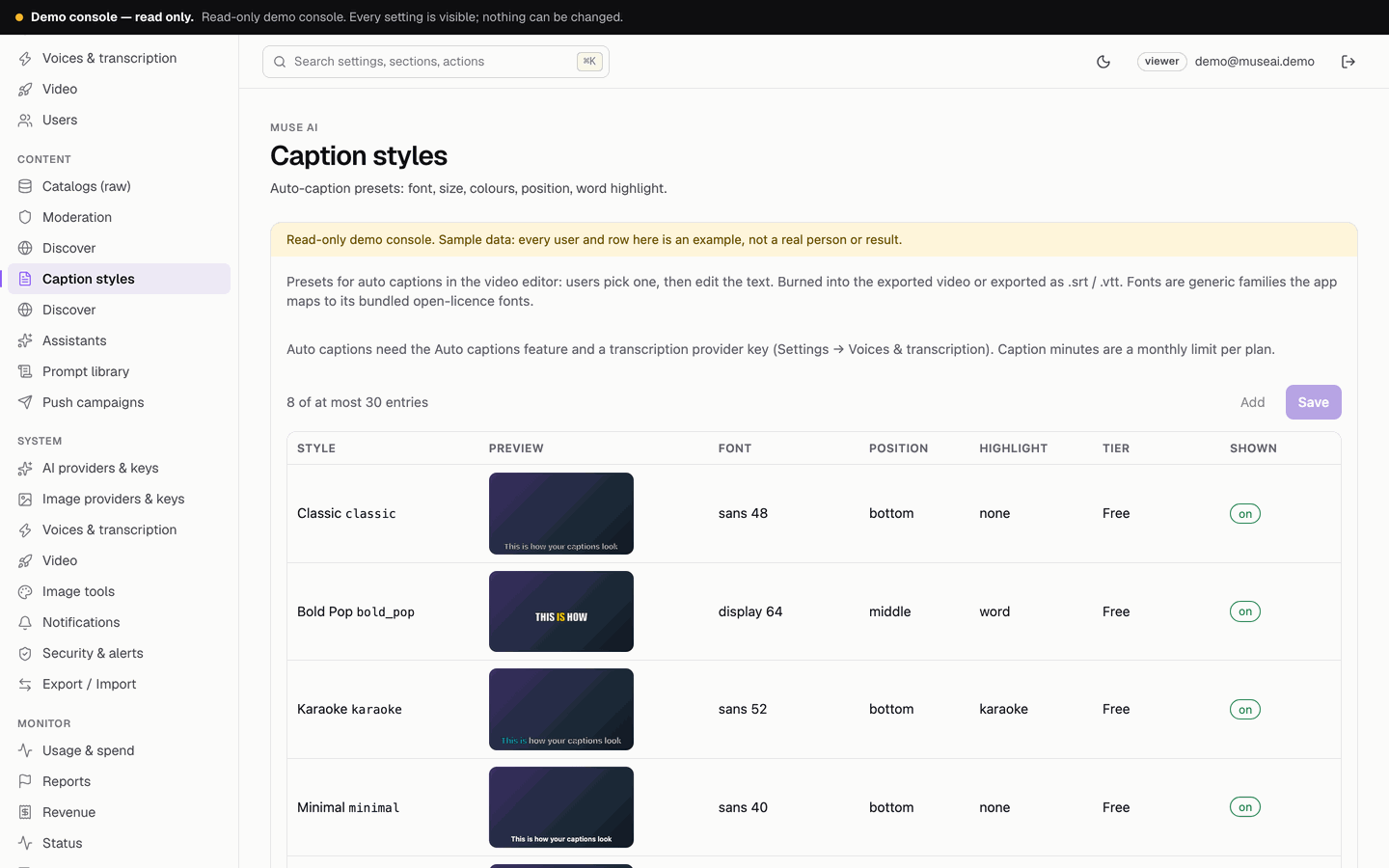
- StylePick one of your caption styles (8 ship: Classic, Bold Pop, Karaoke, Minimal, Neon, Boxed, Subtle, Headline), with word or karaoke highlighting where the style has it.
- Translate (optional)Translate the captions into one of the app's languages; this uses your chat title model and counts as one message per 2,000 characters.
- OutputBurn captions into the video on export, or export .srt / .vtt subtitle files.
Captions are charged in caption minutes per month (free 3, the example plan 60). Edit or add styles on Console → Caption styles (font family, size, colours, outline, background box, position, highlight, upper case, words per line, tier).
04AI video
Users describe a clip, or start from a picture with an image-to-video model, pick a duration and an aspect ratio, and tap Generate video. The job runs at the provider; the app shows its progress and the finished clip appears under "My videos" and in Library → Videos.
- KeyConsole → Video settings → fal.ai key for video (empty = the fal.ai key under Image providers) or Replicate API token. Click Test; the fal.ai test generates nothing. Click paths: Provider dashboards.
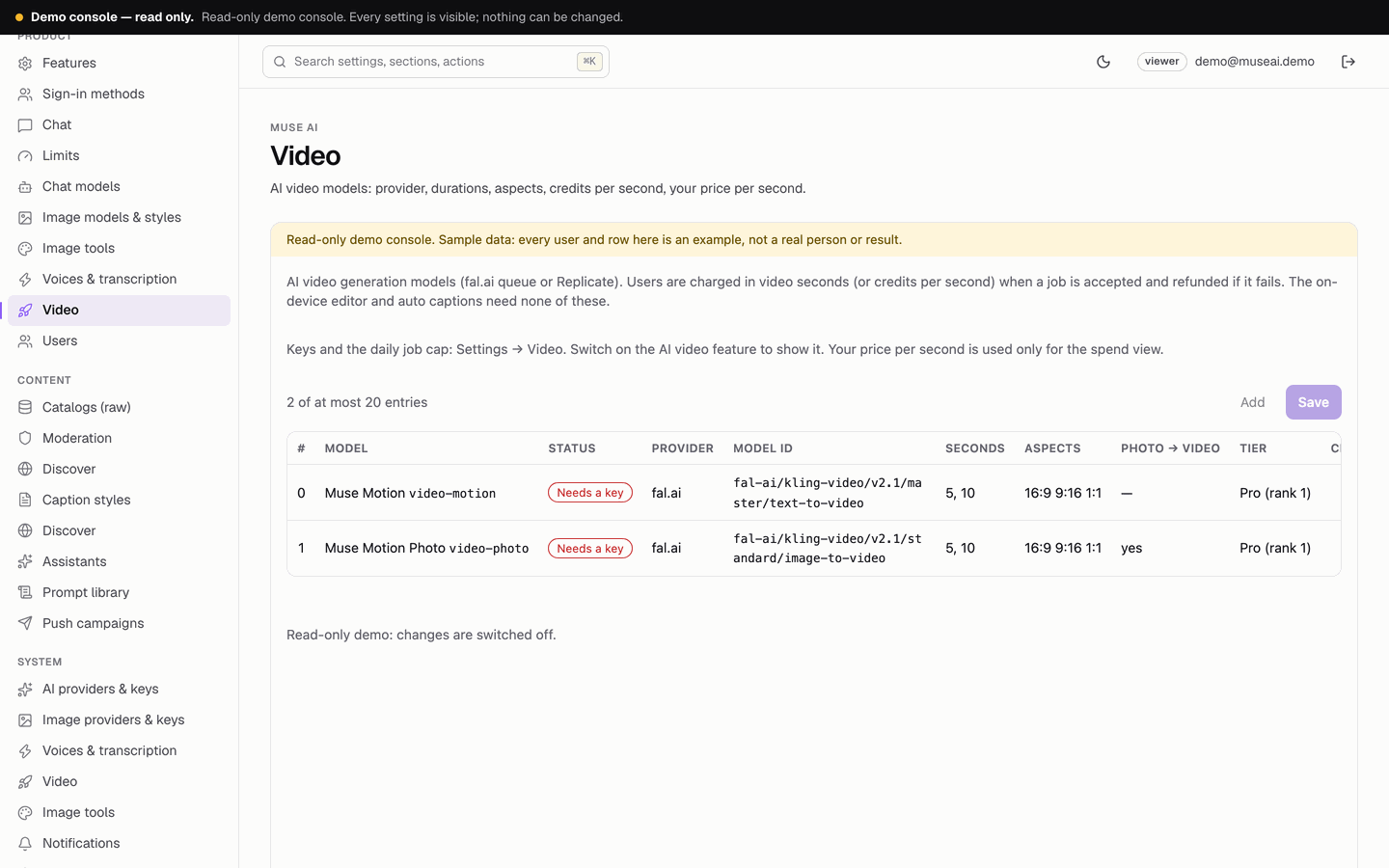
- ModelsConsole → Video page. Two fal.ai models ship, disabled: Muse Motion (
fal-ai/kling-video/v2.1/master/text-to-video, 10 credits per second) and Muse Motion Photo (fal-ai/kling-video/v2.1/standard/image-to-video, image-to-video, 6 credits per second), both 5 or 10 seconds, 16:9, 9:16 or 1:1, tier "pro". Enable one, or add your own: provider, model id, durations (up to 4 values, 1–30 s), aspects, image-to-video, credits per second, tier, your price per second. Use a model id exactly as the provider names it, and check on the provider's model page which durations and aspects it accepts. - Switch onConsole → Features → AI video generation on. Save.
- AllowanceFree users get 0 AI video seconds a month by default, so AI video is for plans (the example plan 60 seconds a month) or credits. Change it on Limits and Plans.
How a video job works
- The prompt is checked by moderation first (your blocklist, the optional OpenAI endpoint and the locked rule against sexual content involving minors).
- The seconds (or credits: credits per second × duration) are charged when the job is accepted, and refunded if it fails.
- A user can have at most 2 unfinished jobs. A job not finished after 30 minutes is cancelled, failed and refunded.
- The finished MP4 is copied into your Firebase Storage; the prompt is stored with it. Users can delete their videos, and they are deleted with the account.
- Global cap: Video jobs per day, all users together (default 50). Above it, new jobs answer "capacity" until 00:00 UTC.
05Costs
AI video is billed by fal.ai or Replicate per second or per clip on your own account; you pay your own usage, and video is usually the most expensive module per request. Captions are billed per minute by your transcription provider. The editor costs nothing. Enter your price per second on the Video page to see computed spend on Usage & spend. See Costs.
06Troubleshooting
- Export is disabled: you are in the web build. Export runs only on Android and iOS.
- Auto captions missing or failing: captions are off, the transcription provider is Gemini, or the transcription key is missing or refused (
/v1/health→"transcribe"; Console → Voices & transcription → Test). - No AI video card: AI video is off, no video model is enabled, or its provider has no key (
"video":"off"or"no_key"). - A video stays "running": the provider is still working; after 30 minutes the job is failed and refunded automatically.
- Every job fails at once: the model id, duration or aspect is not accepted by the provider. Check the provider's model page and your dashboard's request log.
More: Troubleshooting → video.