First run walkthrough.
From opening the app to the first chat.
What a new user sees, screen by screen, and which console setting controls each part. The pictures are real captures of the 2.0.0 web build in demo mode: ads say "DEMO AD", prices say "Demo — no charge", and Discover and video items are labelled samples. Chat answers in these pictures are real output of a local open model for example prompts.
011. Welcome pages
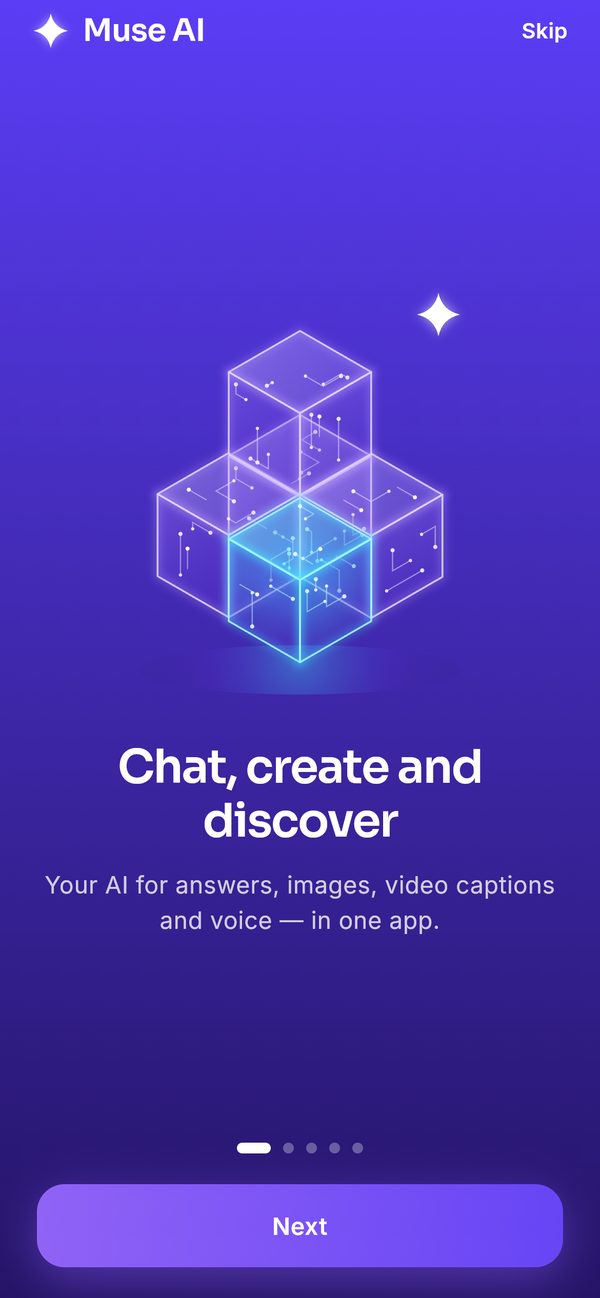
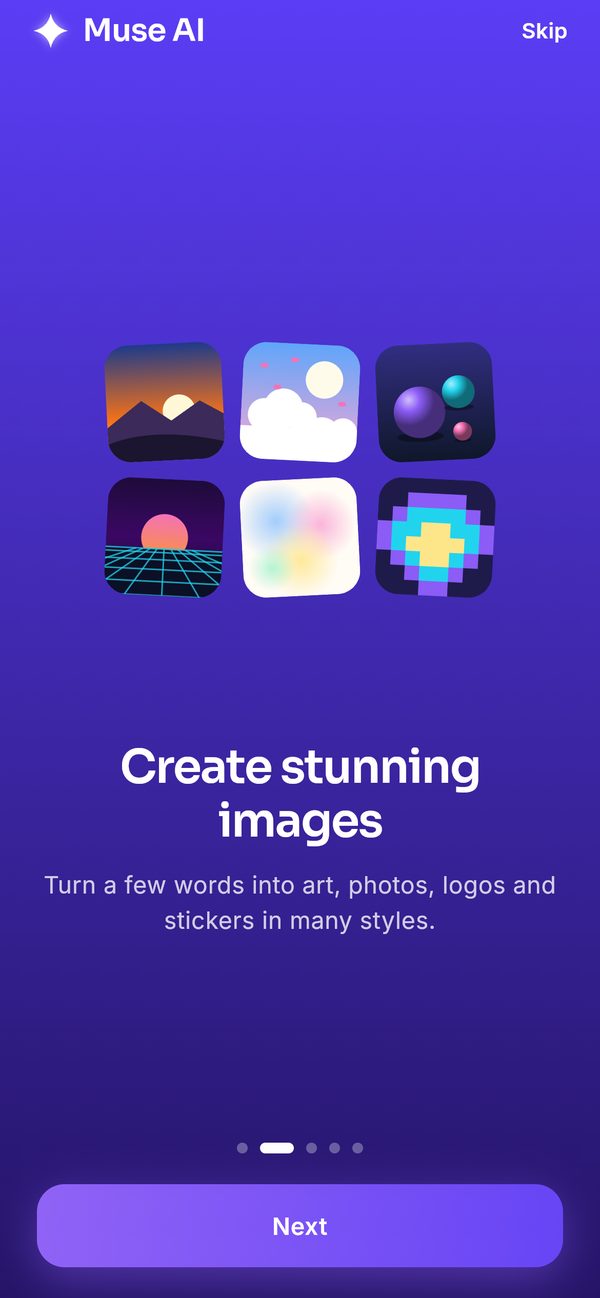
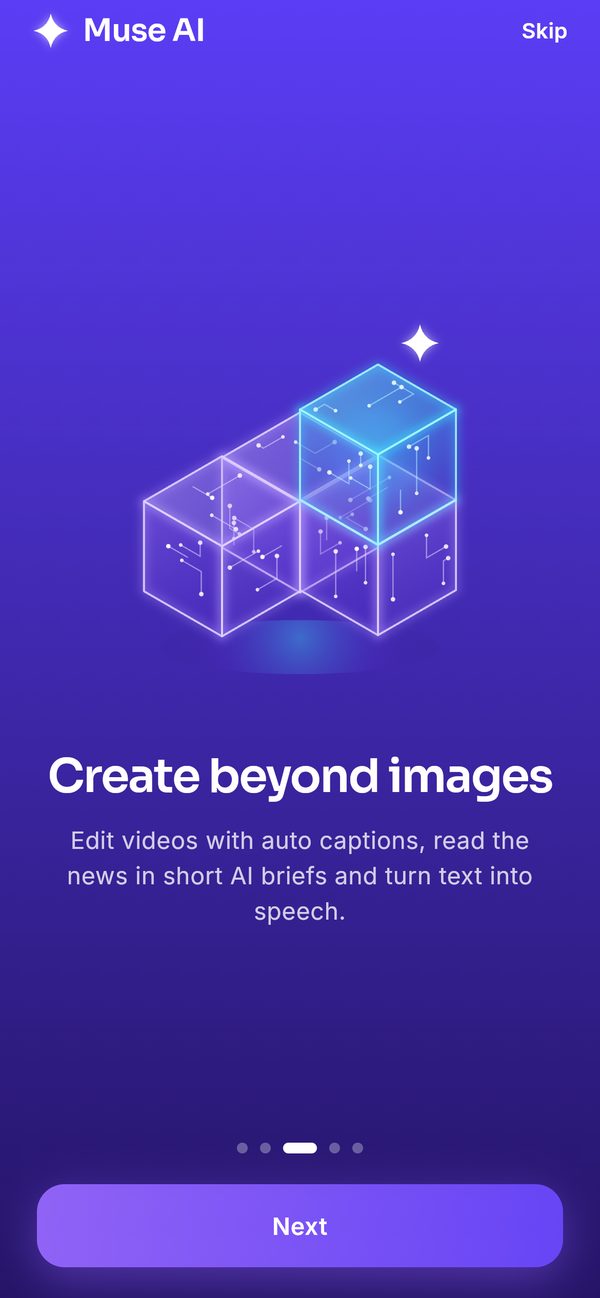
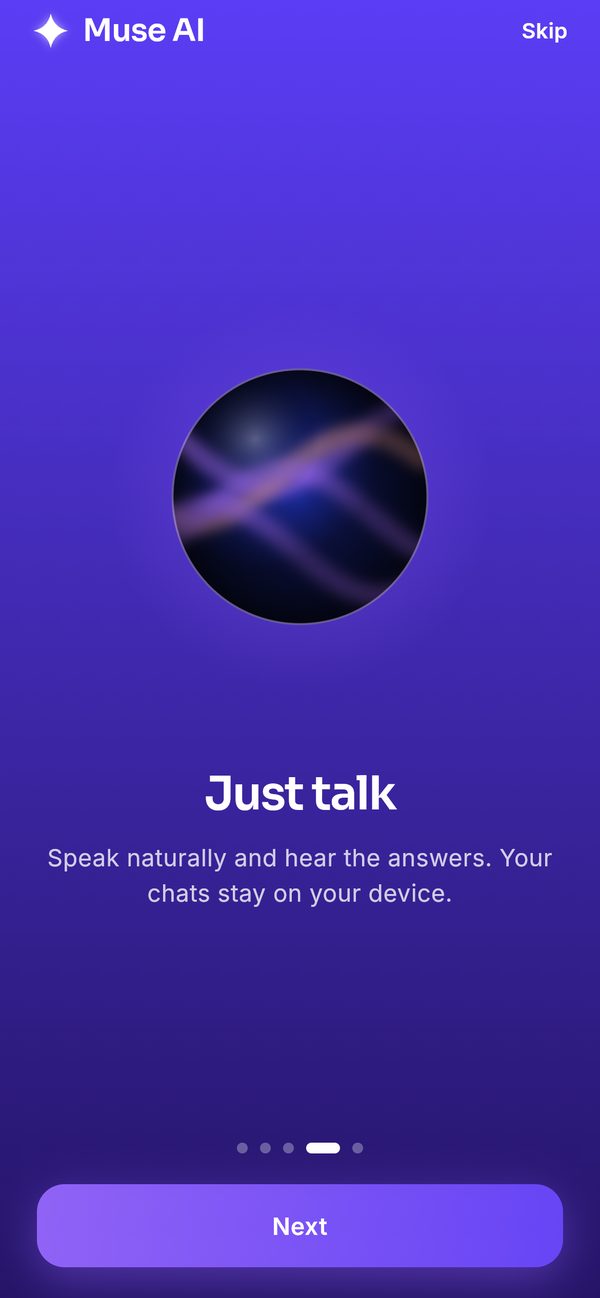
The first time the app opens, it shows four short welcome pages ("Chat, create and discover", "Create stunning images", "Create beyond images", "Just talk") and then the age check. The user taps Next or Skip. The app name in the top bar is the Product name you set in Console → Brand.
022. The age check
Next comes "One quick check": the user ticks I am 17 or older and taps Get started. The button stays grey until the box is ticked. Links to your Terms of use and Privacy policy sit under the box.
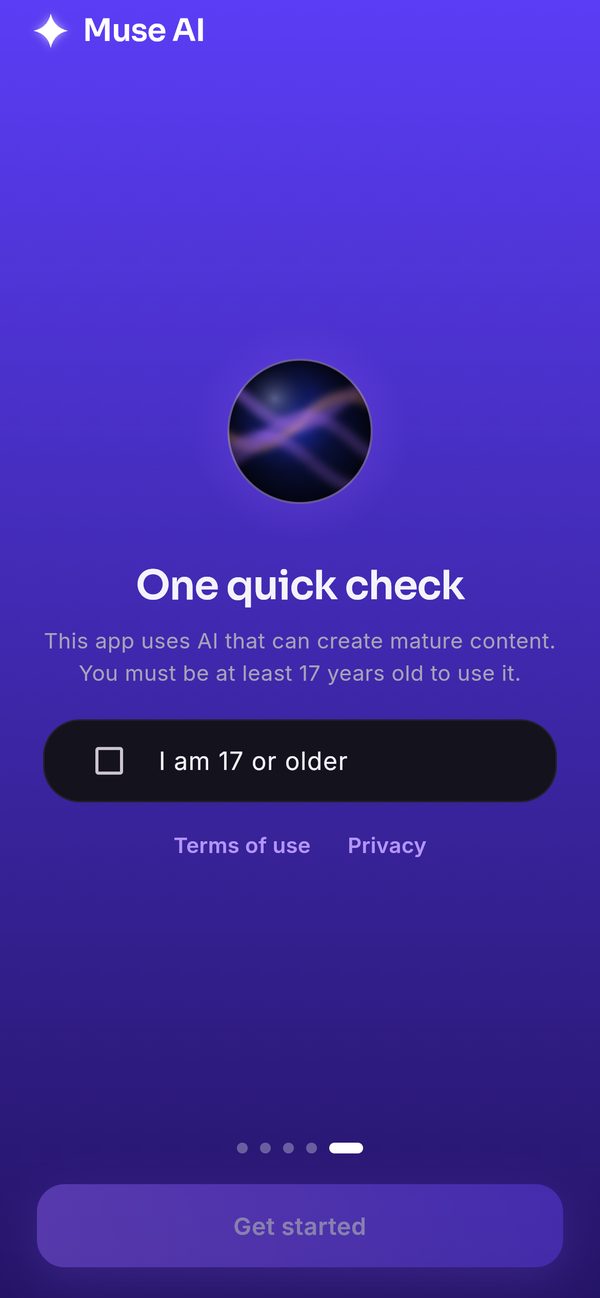
The app asks the user to confirm their age with a checkbox. It does not check documents or verify the answer. Set your store age ratings to match, and do not describe this check as verification in your store listing or privacy policy.
- Console → Legal → Minimum age sets the number (13, 16, 17 or 18; default 17).
- Console → Legal → Ask for age confirmation on first launch switches the page on or off. Keep it on: app stores expect it for apps with AI-generated content.
033. Optional sign-in
In your real app (with Firebase connected) the user can sign in with Google, Apple or e-mail, or skip. Skipping is fine: the app creates an anonymous account in the background, and chats work the same. Signing in is only needed to back up chats and use a plan on several devices. The web demo has no Firebase, so it skips this step.
Which buttons appear: Console → Sign-in methods. Turn a method on only after you enabled the same provider in Firebase Authentication (Installation).
044. The first chat
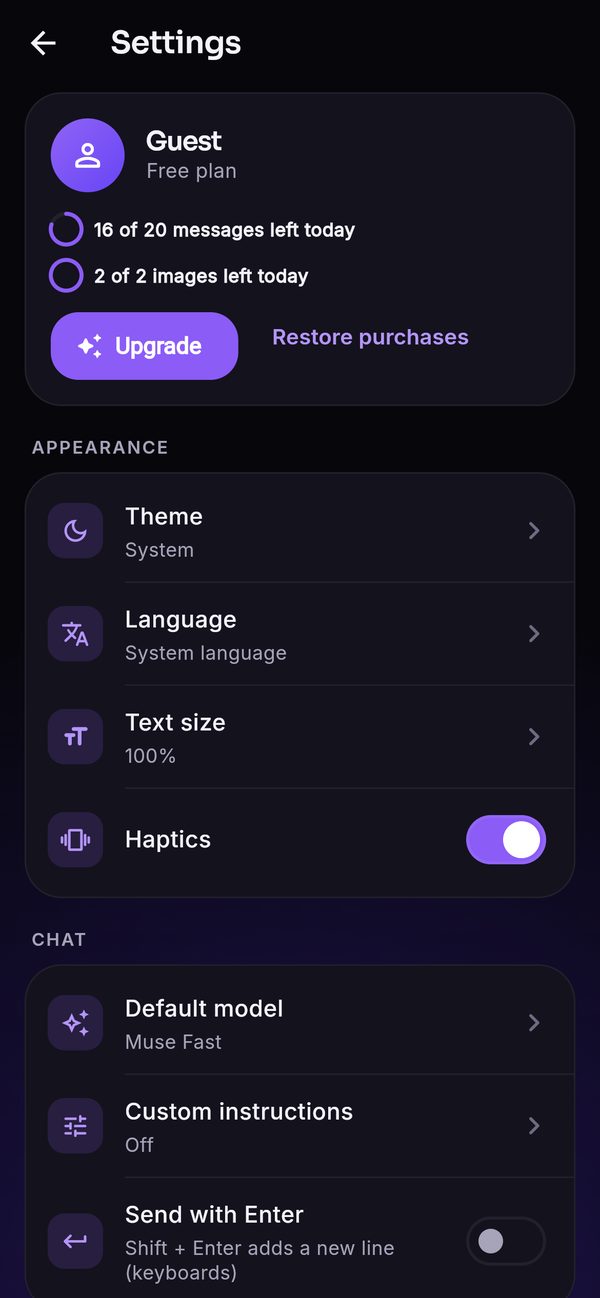
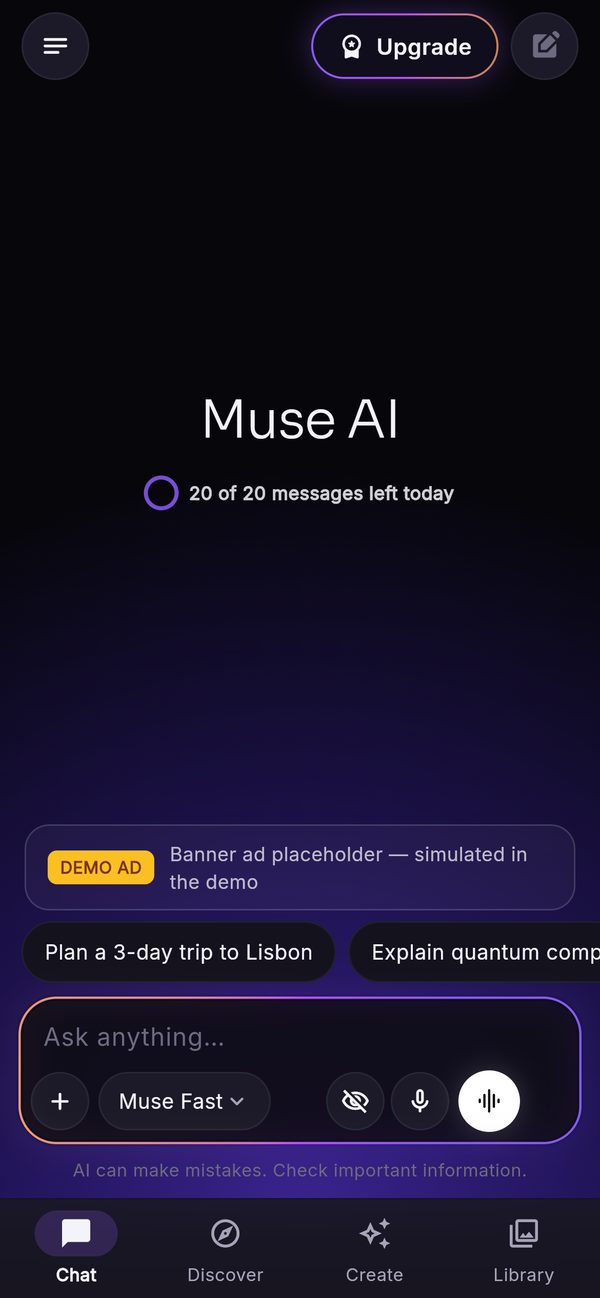
- The empty chatShows the app name and how many free messages are left today (Console → Limits). The chips above the composer come from Console → Chat → Suggestions on the empty chat.
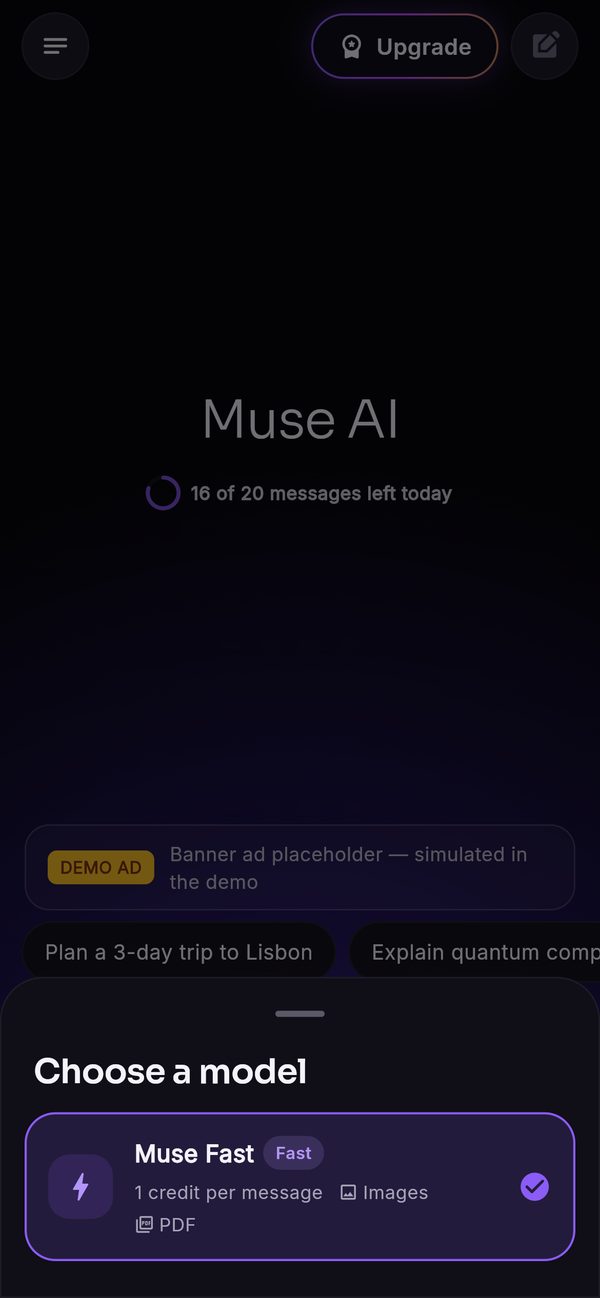
- Pick a model, or keep the defaultThe chip in the composer ("Muse Fast") is the chat model. Tapping it opens Choose a model with each model's badge, credit cost and what it can read.
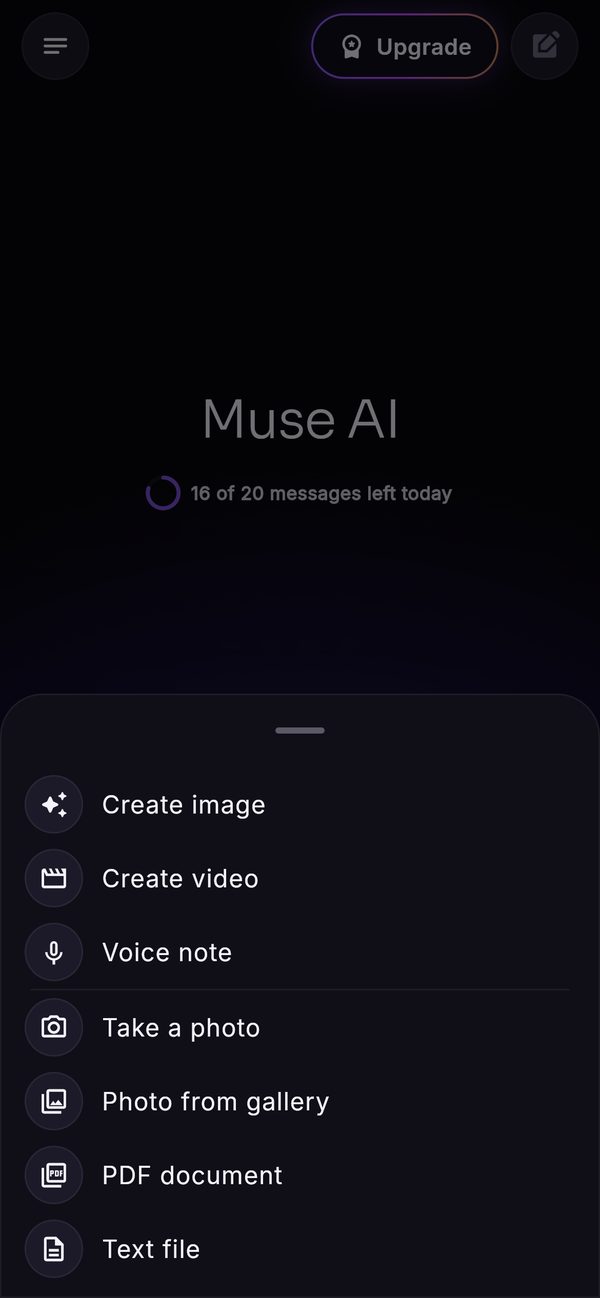
- The "+" menuCreate image, Create video, Voice note (recorded and transcribed), Take a photo, Photo from gallery, PDF document, Text file. Items appear only when the matching feature is on and the chosen model supports it.
- SendThe answer streams in word by word, with Markdown, tables, code and formulas. Under it are copy, share, read aloud and regenerate, plus a menu with vote, share as card and report. After the answer, up to three follow-up chips suggest the next question.
- Keep goingThe chat is saved on the phone. The menu button at the top left opens the history.
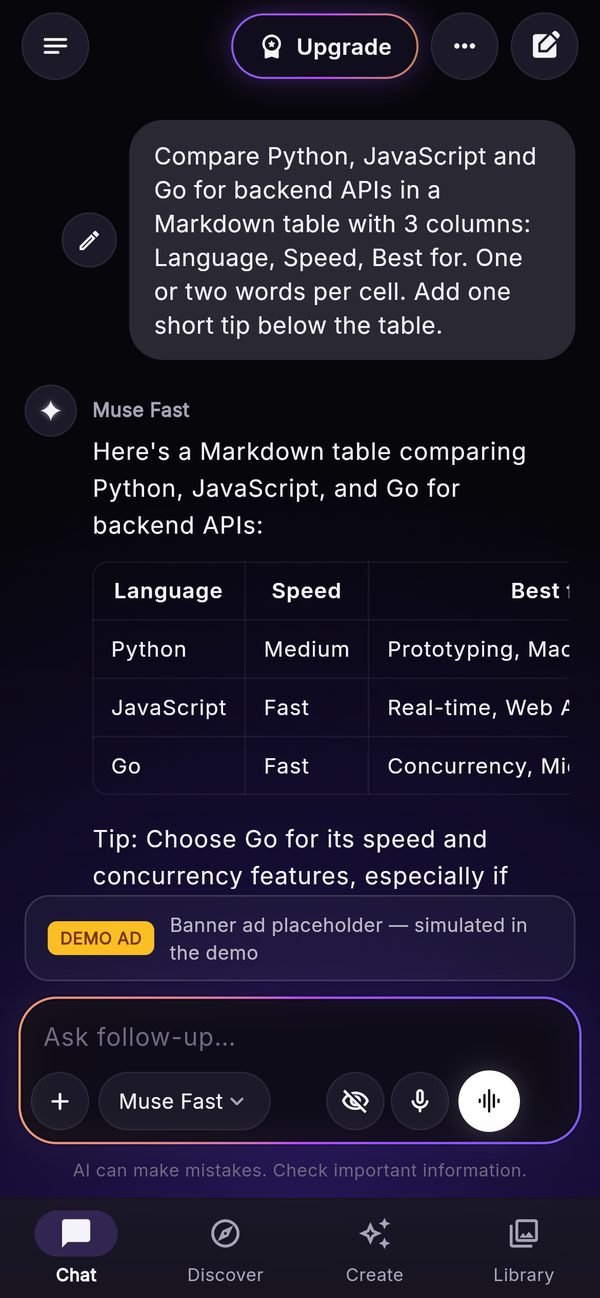
If a user sees this instead of the chat, no chat model is enabled or its provider has no key. Fix it in the console: AI providers and models.
055. When the free allowance runs out
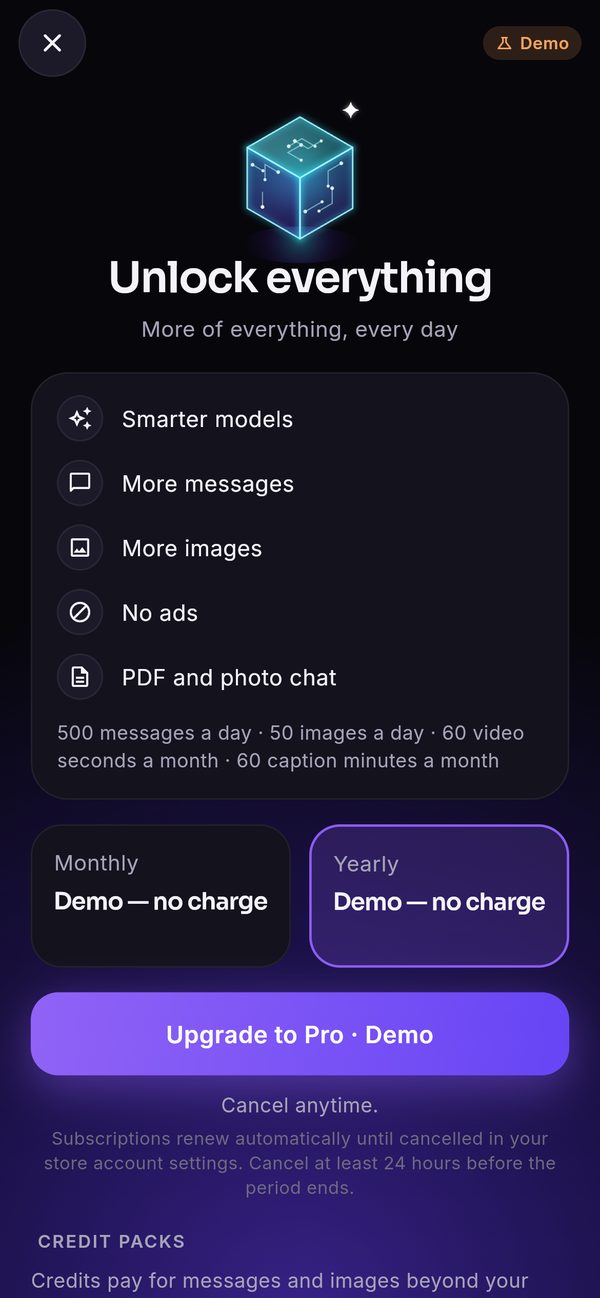
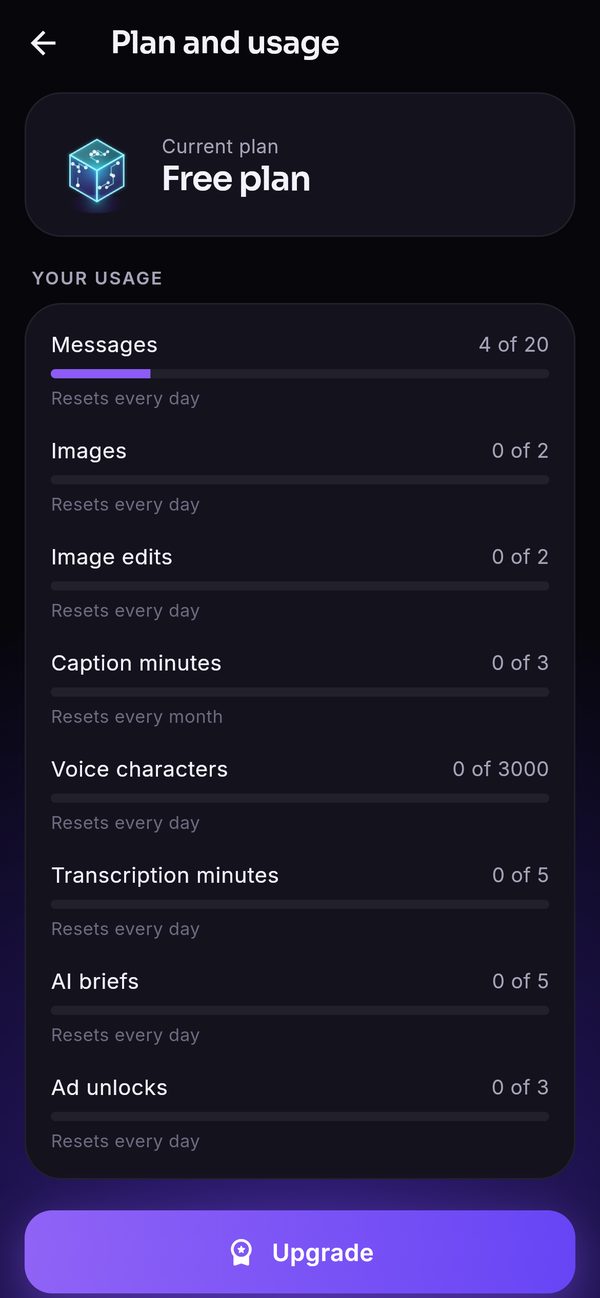
When the daily free messages are used up, the app shows "You've used today's free messages" with the options you enabled: upgrade to a plan, use credits, or watch a rewarded ad for one more message. With nothing enabled, the user is told the allowance resets tomorrow (midnight UTC). Plan and usage in the menu shows a meter for every allowance. See Monetisation.
066. The tabs and the menu
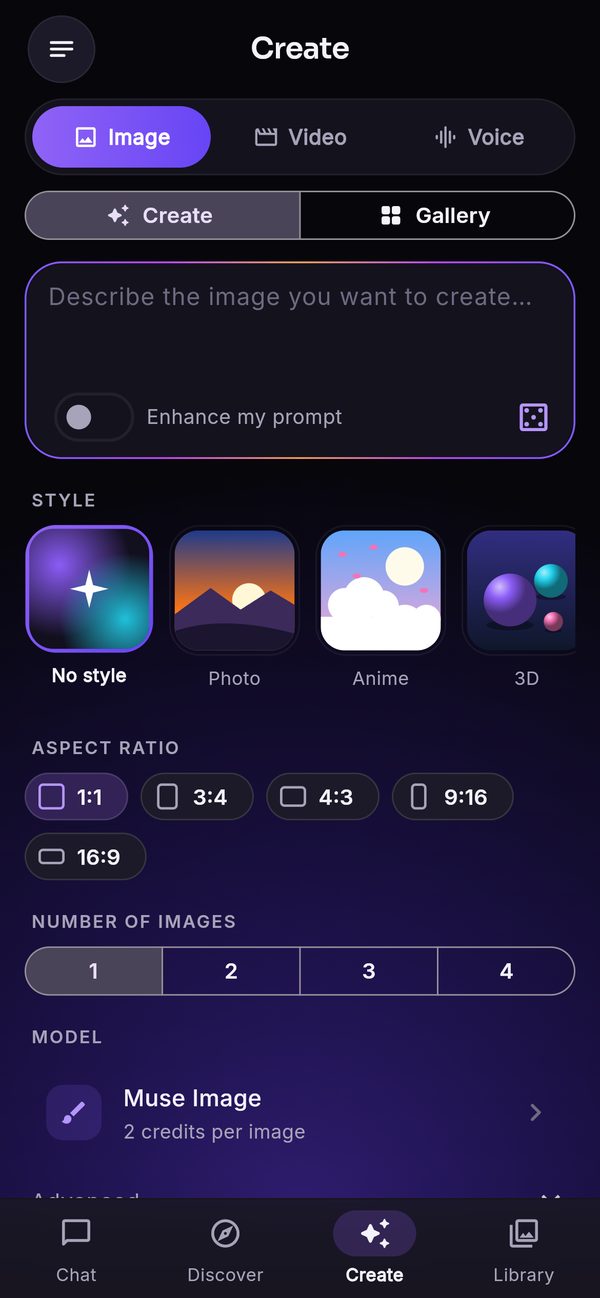
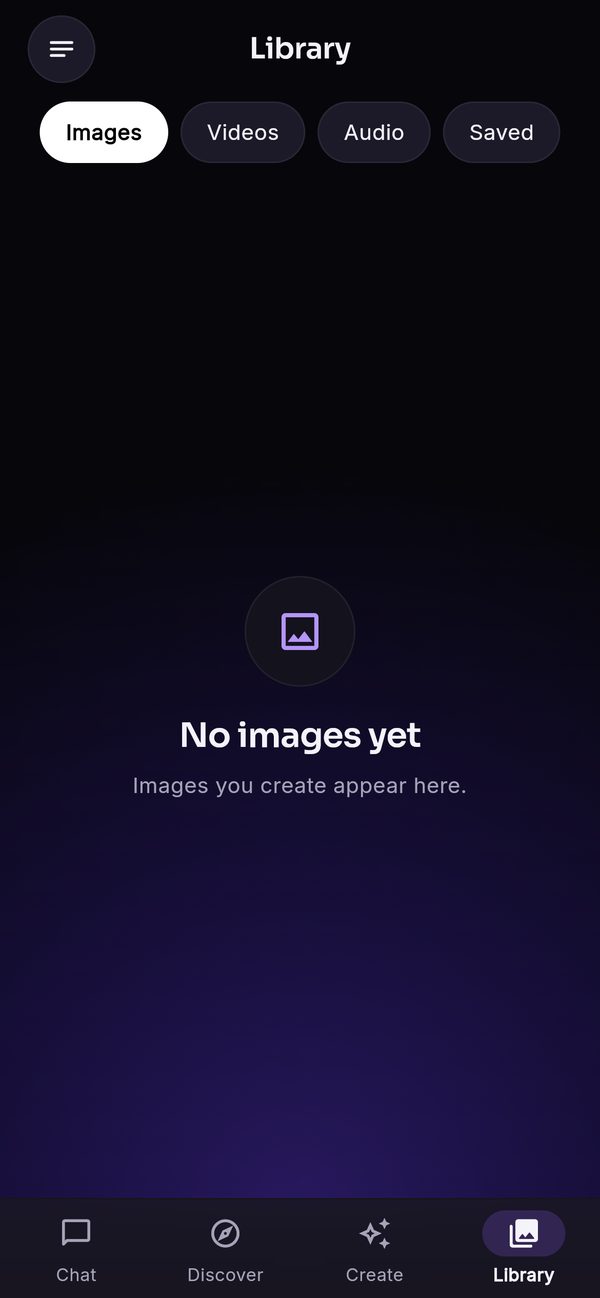
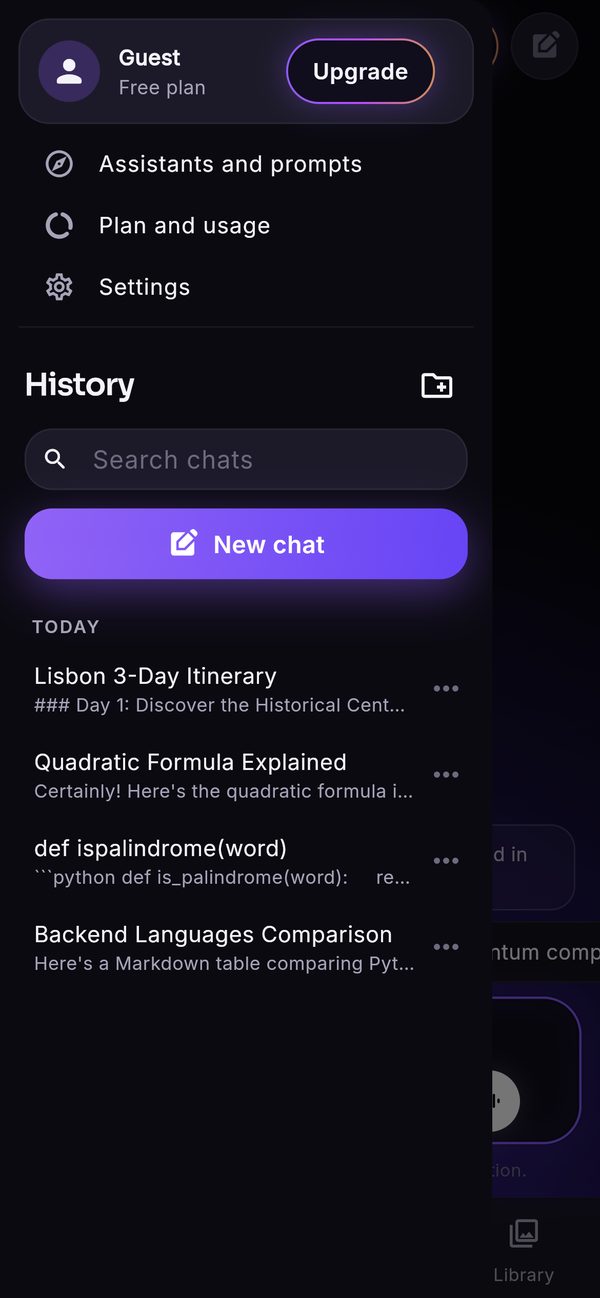
The bottom bar has four tabs: Chat, Discover, Create and Library. A tab disappears when you switch its feature off in the console.
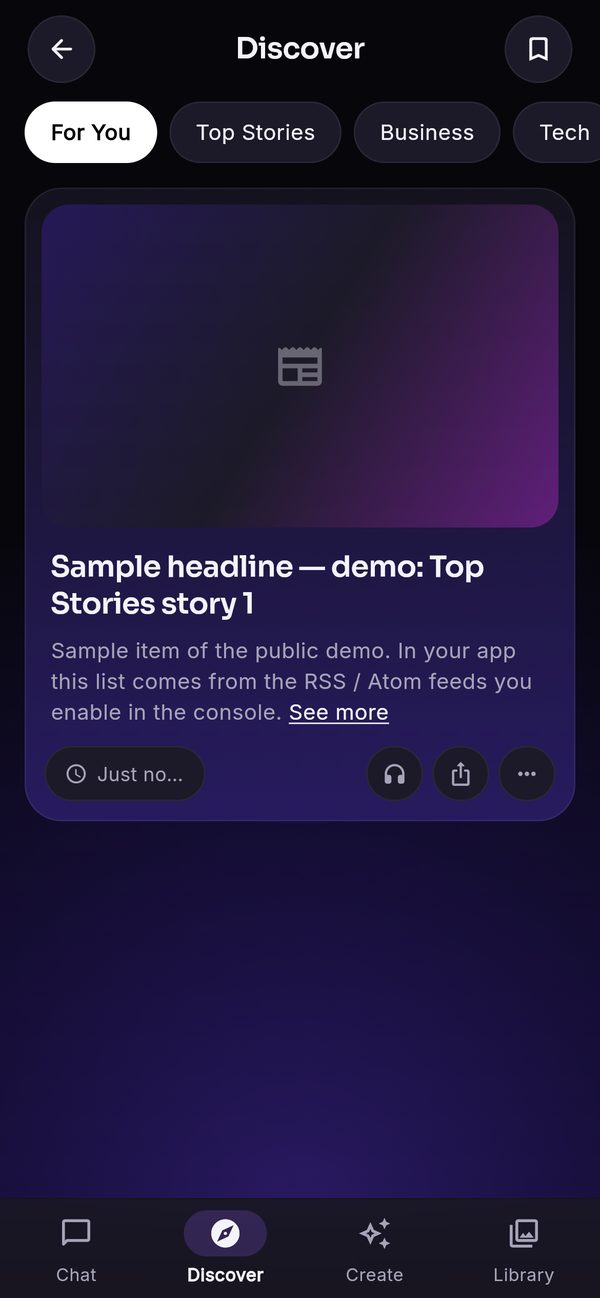
- Discover: news from the feeds you enable, with AI briefs (Discover).
- Create: Image, Video and Voice (Image tools, Video Studio, Voice).
- Library: the user's images, videos, audio and saved articles.
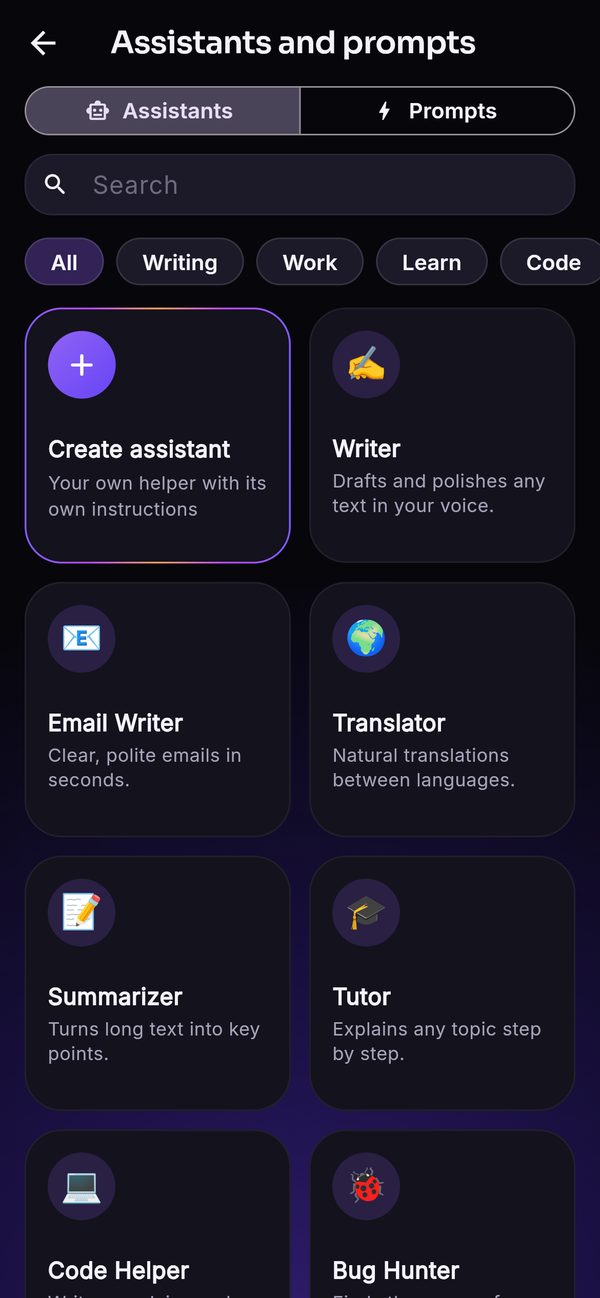
- Menu (top left): profile and plan, Assistants and prompts, Plan and usage, Settings, and the chat history with search, folders, pin, rename, export and delete.
- Upgrade (top of the chat): opens the paywall when you sell plans (Plans and paywall).