Image tools.
Edit a picture with words, cut it out, make it bigger.
Three tools appear in the image viewer of the app when you configure them: edit with a prompt, remove background and upscale. Each calls a provider on your own account (OpenAI or fal.ai for edits, fal.ai for the two one-tap tools). All three ship switched off.
01What users see
When a user opens one of their images in the viewer, the tools you configured appear next to save and share:
- Edit: the user describes a change ("make the sky orange", "turn it into a watercolour") and gets a new picture.
- Remove background: one tap, cuts the subject out of its background.
- Upscale: one tap, returns a larger, sharper version.
Results are saved to the user's gallery like any generated image, with the "AI-generated" badge. A tool whose model is not configured does not appear.
The tools appear only on a generated image, and the public demo generates no real images (it returns a labelled sample picture), so these pages show the console side only.
02Edit with a prompt
- KeyAn OpenAI key (AI providers, or a separate OpenAI key for images) or a fal.ai key (Image providers & keys). Click paths: Provider dashboards.
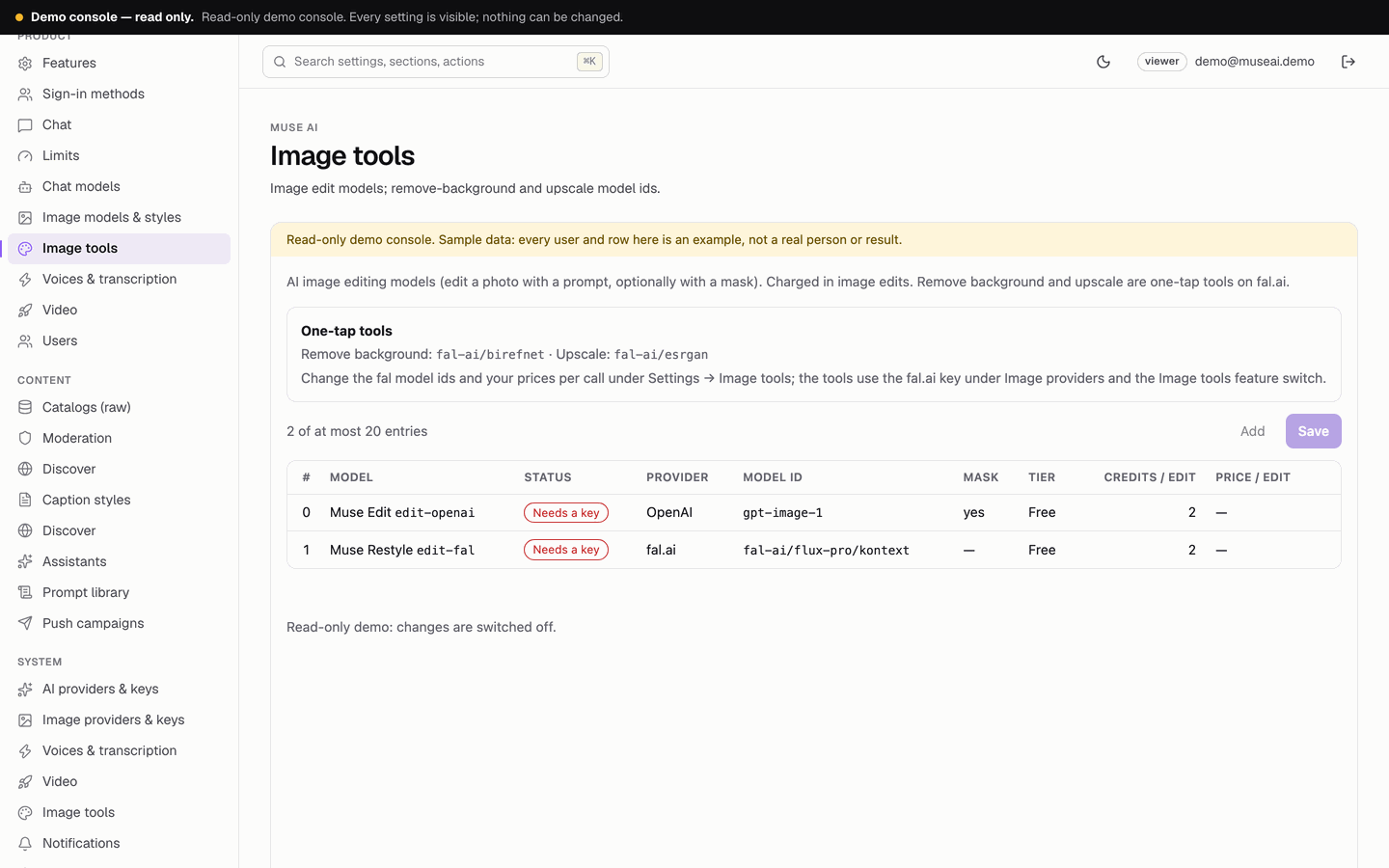
- ModelsConsole → Image tools page → Image edit models. Two ship, disabled: Muse Edit (OpenAI
gpt-image-1, accepts a mask) and Muse Restyle (fal.aifal-ai/flux-pro/kontext), both tier free and 2 credits. Enable one, or add your own: label, provider, model id, tier, credit cost, accepts a mask, your price per image. - Switch onConsole → Features → AI image editing on. Save.
The edit prompt goes through moderation (your blocklist, the optional OpenAI endpoint, and the locked rule against sexual content involving minors). The uploaded picture itself is not checked by Muse AI's moderation; the provider's own safety still applies.
03Remove background and upscale
- fal.ai keyConsole → Image providers & keys → fal.ai key → Set → Save → Test.
- Model idsConsole → Image tools settings: Remove background: fal model id (default
fal-ai/birefnet) and Upscale: fal model id (defaultfal-ai/esrgan). Empty = the tool is hidden. Optional: your price per call, for the spend view. - Switch onConsole → Features → Image tools (remove background, upscale) on. Save.
Each tool is a single call to the fal.ai model you entered. Check the model's page on fal.ai for what it accepts and returns; you can replace the defaults with any fal.ai model of the same kind.
04Allowance, credits and caps
- Edits and both tools count against the user's image edits and tools allowance (free 2 a day; the example plan 50).
- Beyond it, credits: the edit model's credit cost, or 1 credit per tool call.
- All of them count toward Images per day, all users together (default 200).
- A failed call is refunded.
05Costs
OpenAI and fal.ai bill each edit or tool call on your own account at their price for the model you chose; you pay your own usage. Enter your prices in the console (per edit model, per tool) to see computed spend on Usage & spend. See Costs.
06Troubleshooting
- No tools in the viewer: the features are off, no edit model is enabled with a key, the tool's model id is empty, or no fal.ai key is set (Status: "Image edit models and tools have their keys").
- "fal.ai does not know the model …" (404) on the key test or in the logs: the model id is wrong. Copy it exactly from the model's fal.ai page.
- Edits blocked with "goes against the content rules": the prompt hit your blocklist, the moderation endpoint or the locked rule.